
WonFlo links to your Google Ads account as a manager. That is the same mechanism an agency uses, and Google shows you the same warning it shows for any agency — which is worth reading once, calmly, rather than for the first time with a dialog already open in front of you.
So this page shows every screen before you see it, in the order it arrives, and says exactly what the link does and what it does not.
What the link does, and doesn't
- It creates four conversion actions in your account. They are named WonFlo Lead Captured, WonFlo Qualified Lead, WonFlo Inspection Booked and WonFlo Job Won — all Primary, all sitting in your account, all yours. WonFlo is built to send your lead outcomes back to those four actions: which leads were real, which booked, and which bought.
- It does not touch anything else. Not campaigns, not keywords, not bids, not budgets, not billing, and not your login.
- WonFlo links as a non-owner manager. That is the line that matters. Under Google's own rules for manager accounts, a non-owner manager cannot add or remove your users, cannot change who owns the account, and can be unlinked by you at any time.
- It is reversible in four clicks. Admin → Access and security → Managers → Remove access. Your conversion history stays where it is, in your account.
What you'll see, screen by screen
Nine screens. Steps 1 through 5 are the link itself; 6 through 9 are the conversion side of it.
-
Accept the link request. In Google Ads, go to Admin → Access and security → Managers. The request is waiting under Link request. Click Accept.
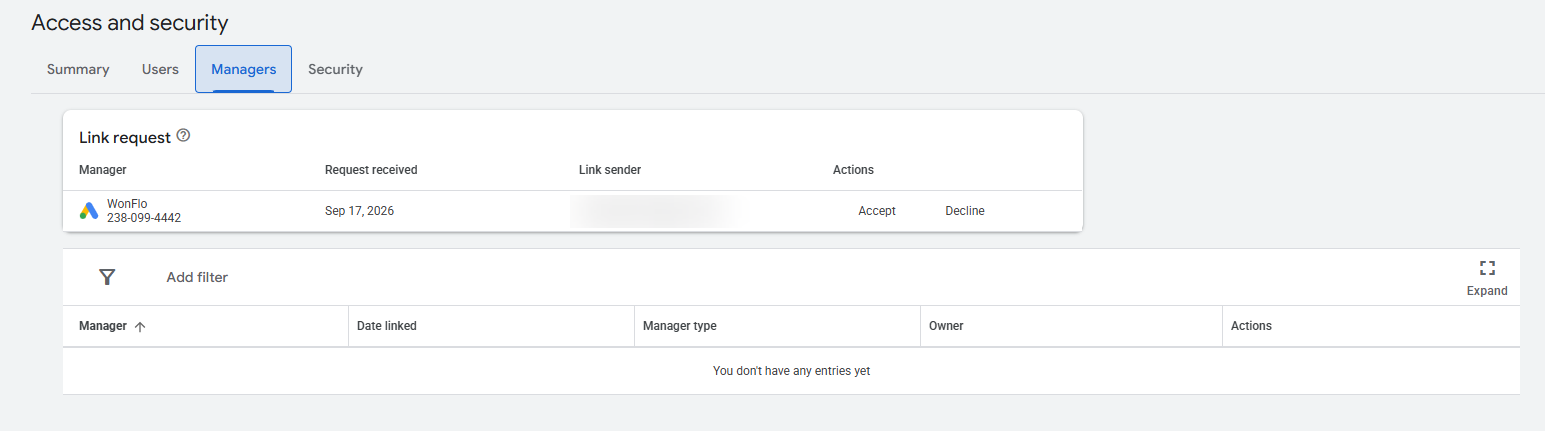
The Managers tab with the request pending. The Link sender column shows the WonFlo team member who sent it. Open full size ↗ -
Read the dialog, then link. Google asks “Grant WonFlo access to this account?” Two lines in it are worth reading properly, and they are the two that make people pause.
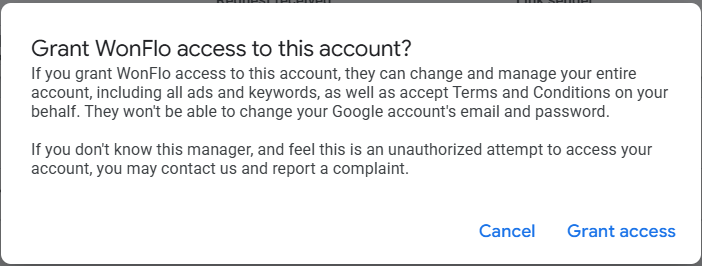
Google's confirmation dialog. The wording discussed below is Google's, not ours. Open full size ↗ “change and manage your entire account, including all ads and keywords” is Google's standard wording for any linked manager, agency or otherwise. It describes what a link can mean, not what WonFlo does — the list above is what WonFlo actually touches.
“accept Terms and Conditions on your behalf” — there is exactly one checkbox in this whole setup we would rather you tick yourself, at step 7, so that it is your name on it.
Click Grant access.
-
Confirm it's you. Google asks you to re-authenticate. That is normal for a security change on an ad account. Click Confirm.
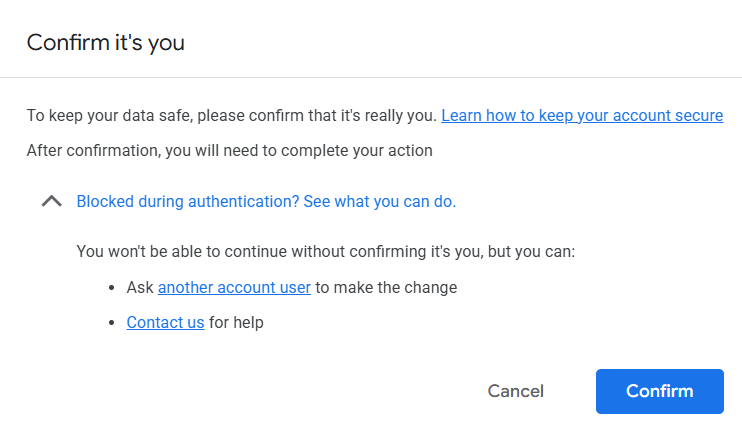
A standard re-authentication step, not something specific to WonFlo. Open full size ↗ -
If Google asks for 2-Step Verification, set it up. Accounts that do not already have it get asked here. That is Google's account-security policy, not something WonFlo triggered. Turn it on, then come back to step 1.
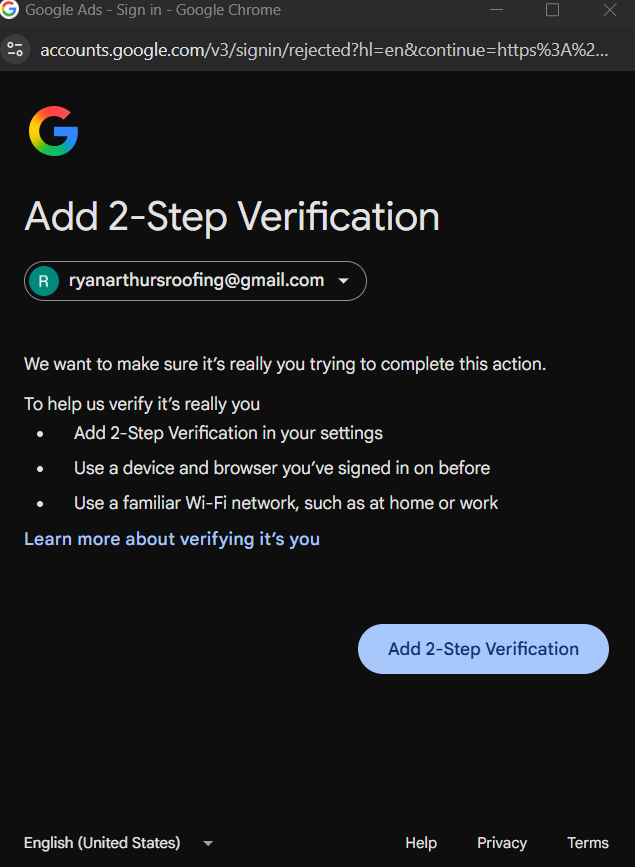
This screen appears only if 2-Step Verification is not already on. Open full size ↗ -
Check the managers table. WonFlo now appears there with Owner: No. That “No” is the non-owner link described above — it is the thing keeping user management and account ownership out of our hands.
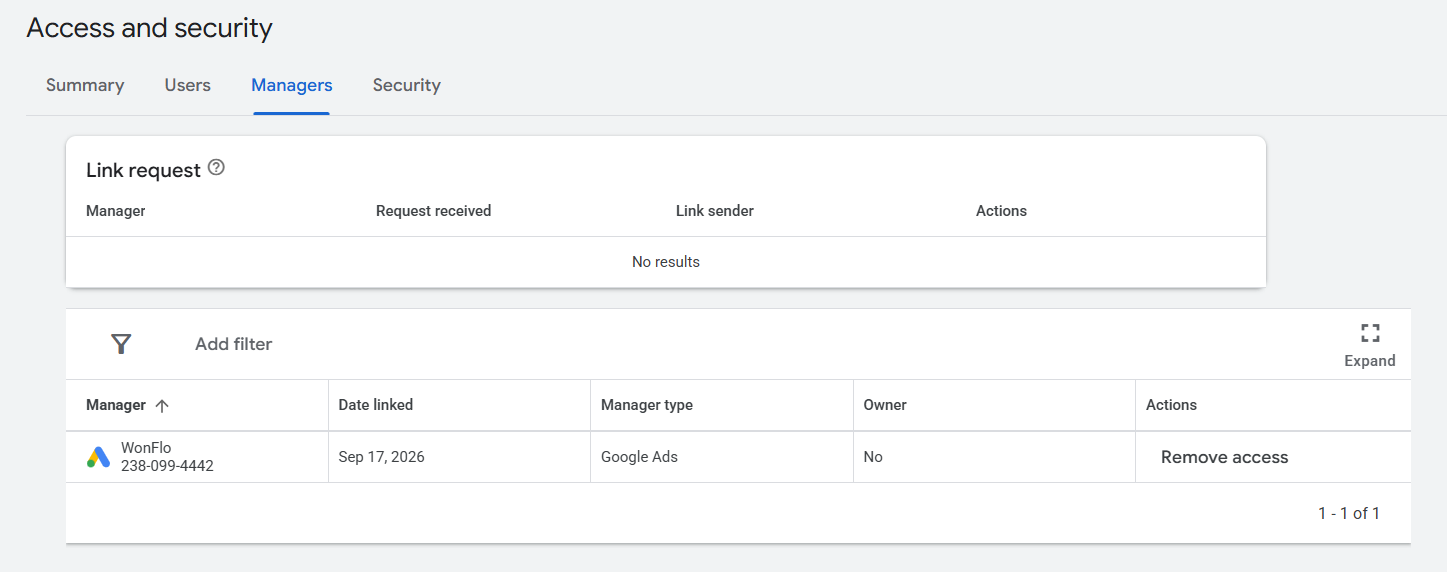
Linked, active, and not an owner. This is the state you want. Open full size ↗ -
Open your conversion settings. Goals → Conversions → Settings. Find the Customer data terms row.
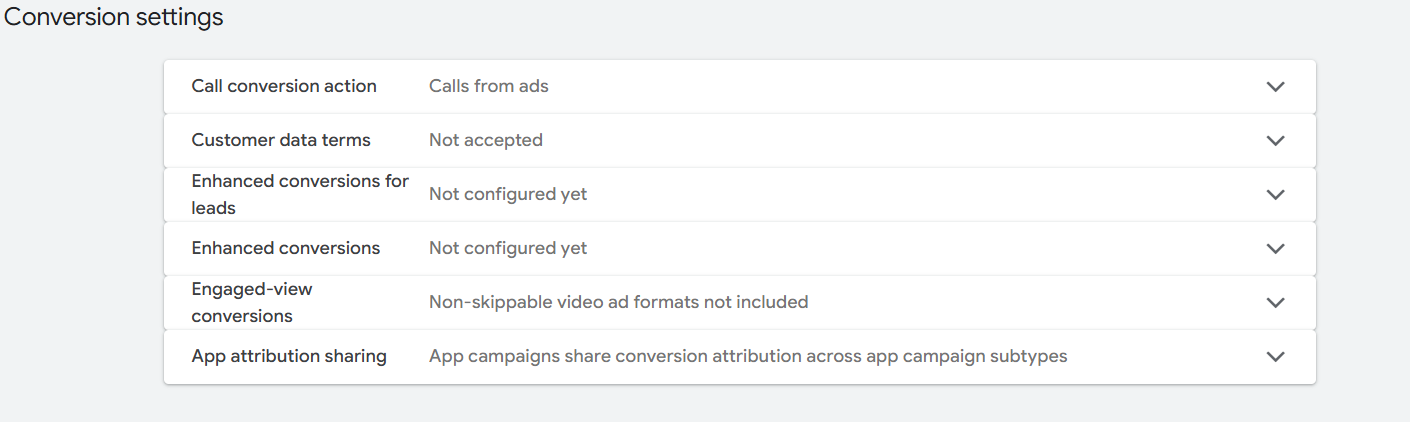
Several rows live here. Customer data terms is the only one this setup needs. Open full size ↗ -
Accept the customer data terms yourself. Expand the row, read it, tick “I have read and accept the terms on behalf of my company”, and Save. This is how Google lets your account receive outcome data from WonFlo. It is a statement about your own lead data, which is why we ask you to tick it rather than doing it for you.
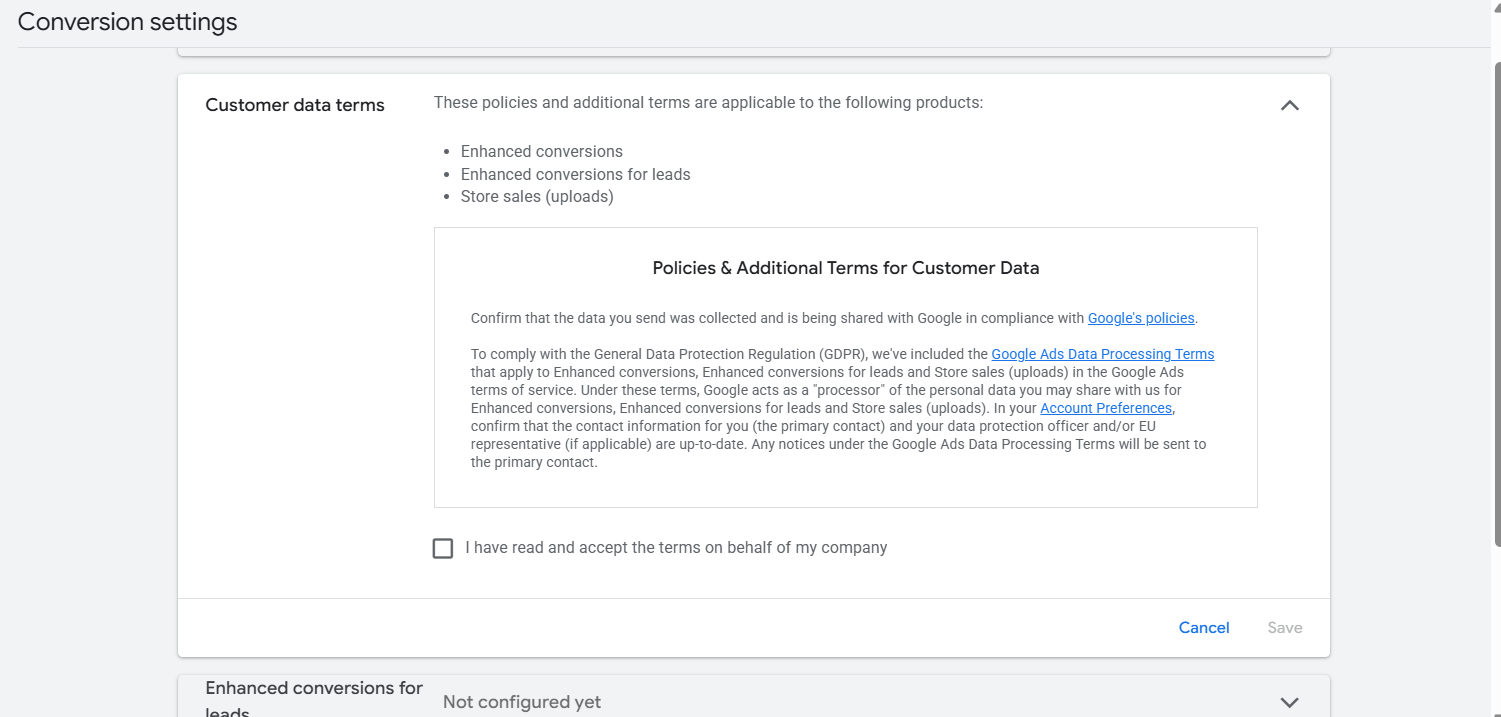
Expanded and not yet accepted. The checkbox is near the bottom. Open full size ↗ -
Confirm the row reads Accepted. That is the checkbox done.
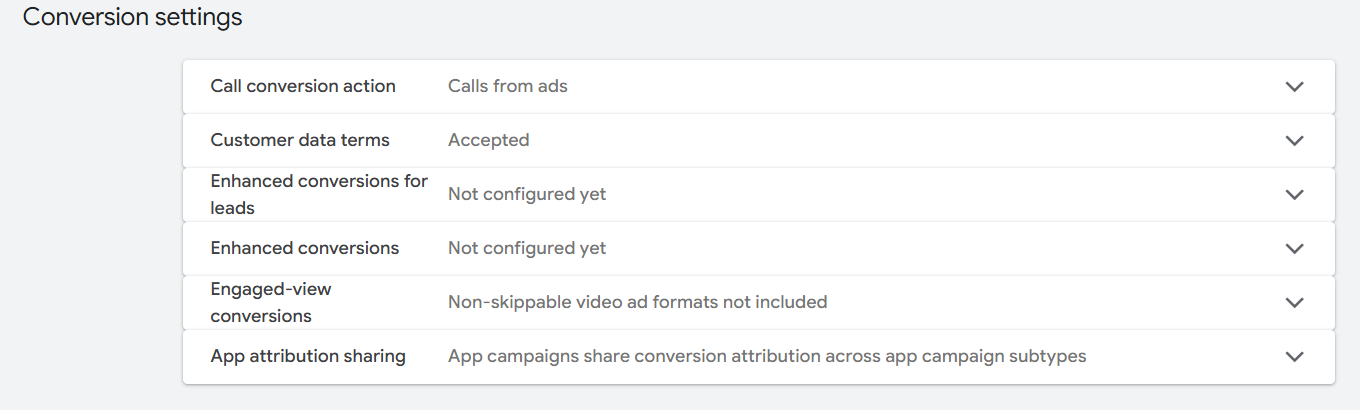
Accepted. Nothing else on this page needs changing. Open full size ↗ -
Find the four WonFlo actions. Goals → Conversions → All conversions. All four are there, each Primary under its account-default goal.
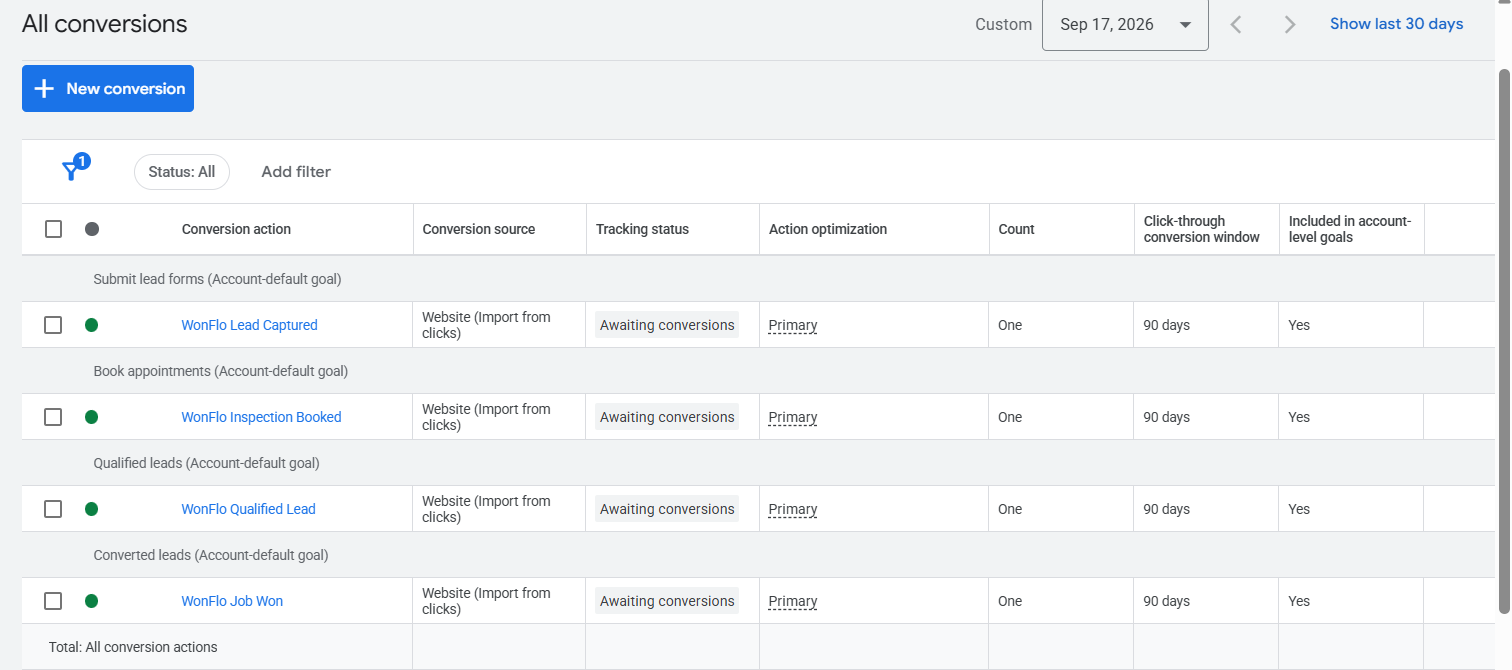
“Awaiting conversions” just means no data has arrived against them yet. Open full size ↗
Two questions we get
- Can WonFlo spend my money? No. Budgets and billing are not part of the link, and a non-owner manager cannot add a payment method for you.
- I already have an agency on the account. Both can be linked — an account takes more than one manager. If your agency owns your conversion tracking (Google calls it cross-account conversion tracking), WonFlo tells you during setup and gives you a manual path instead of creating the actions.
Related
- How the closed loop works — why the outcomes go back at all, and the part of it that is yours.
- Understanding the lead score — what the score attached to each lead means before you have graded it.